 KeySnap
Text expander for Windows 10 & 11
Type less.
Do more.
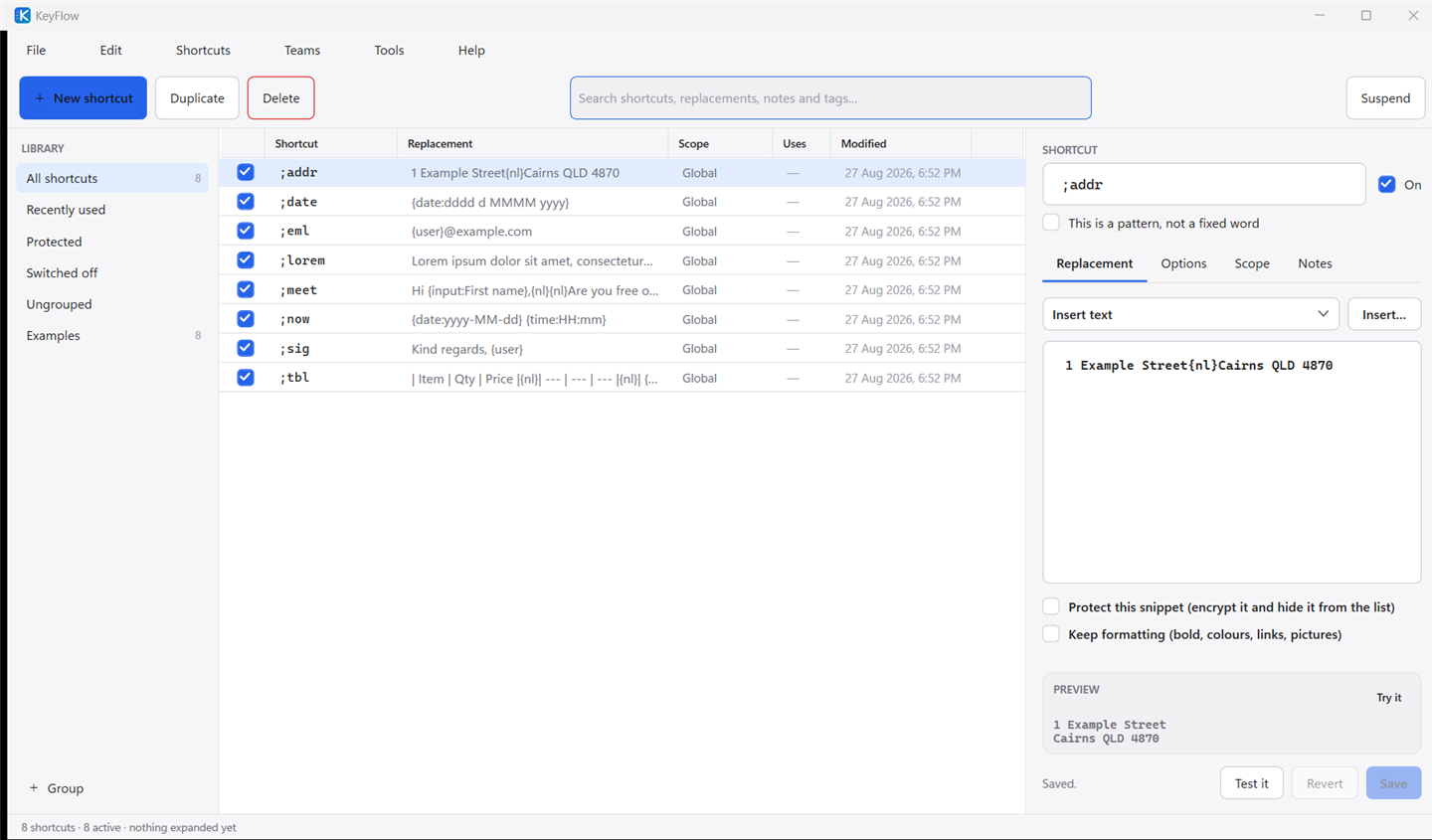
KeySnap watches for the short abbreviations you choose and replaces them, instantly, in any program you type in. Addresses, sign-offs, template replies, boilerplate clauses, part numbers — three keystrokes instead of three hundred.
Free for up to 25 shortcuts · No account · No telemetry · About 18 MB of memory in the tray
Why another one
Built for the people whose expander just stopped being updated
ShortKeys was excellent and is no longer maintained. KeySnap is a modern rebuild of what it did well, without the parts that aged badly — and with the things it never had.
Genuinely light
One small process sitting in the notification area. No background services and no browser extension. Updates download ahead of time, are checked to be genuinely ours, and install in the first few minutes after the next restart, so nobody has to answer anything. It starts with Windows and then gets out of the way.
Safe with the sensitive ones
People keep passwords, licence keys and account numbers in expanders. KeySnap encrypts those against your Windows account, opens them only at the moment you use one, and can put a passphrase in front of them that your computer does not know.
Smart where it counts
Fill-in fields, dates that do arithmetic, cursor placement, per-application rules, a fuzzy quick-insert palette, and one-key undo when a shortcut fires when you did not want it to.
Features
Everything a text expander should do
And a handful of things most of them do not.
- ✓Type-to-expandAbbreviations fire as you type, or wait for a space or full stop — your choice, per snippet.
- ✓Global hotkeysAny snippet can also have its own key combination, whether or not it has an abbreviation.
- ✓Quick-insert paletteCtrl+Shift+Space opens a fuzzy search over every snippet you own.
- ✓Fill-in fieldsPrompt for a name, a date or a drop-down choice before the text is inserted.
- ✓Dates that calculate
{date:+7d:dddd d MMMM}writes next Tuesday out in full. - ✓Cursor placementDrop a
{cursor}marker and the caret lands there, ready to keep typing. - ✓Per-application scopeA shortcut can work everywhere, only in Outlook, or everywhere except your terminal.
- ✓Keys, pauses and waitsSend Tab, Enter or Ctrl+A mid-snippet to drive a form.
- ✓Follows your capitalsTyping
btwandBtwandBTWgive you three sensible results. - ✓Undo an expansionCtrl+Alt+Z puts back exactly what you typed.
- ✓Groups and tagsFold a thousand shortcuts into folders, and switch a whole folder off at once.
- ✓Conflict checkingKeySnap tells you when two shortcuts collide or one hides another.
- ✓Snippets inside snippets
{snippet:;sig}reuses your sign-off instead of copying it twelve times. - ✓Run and openA shortcut can launch a program, open a file or open a web address instead of typing.
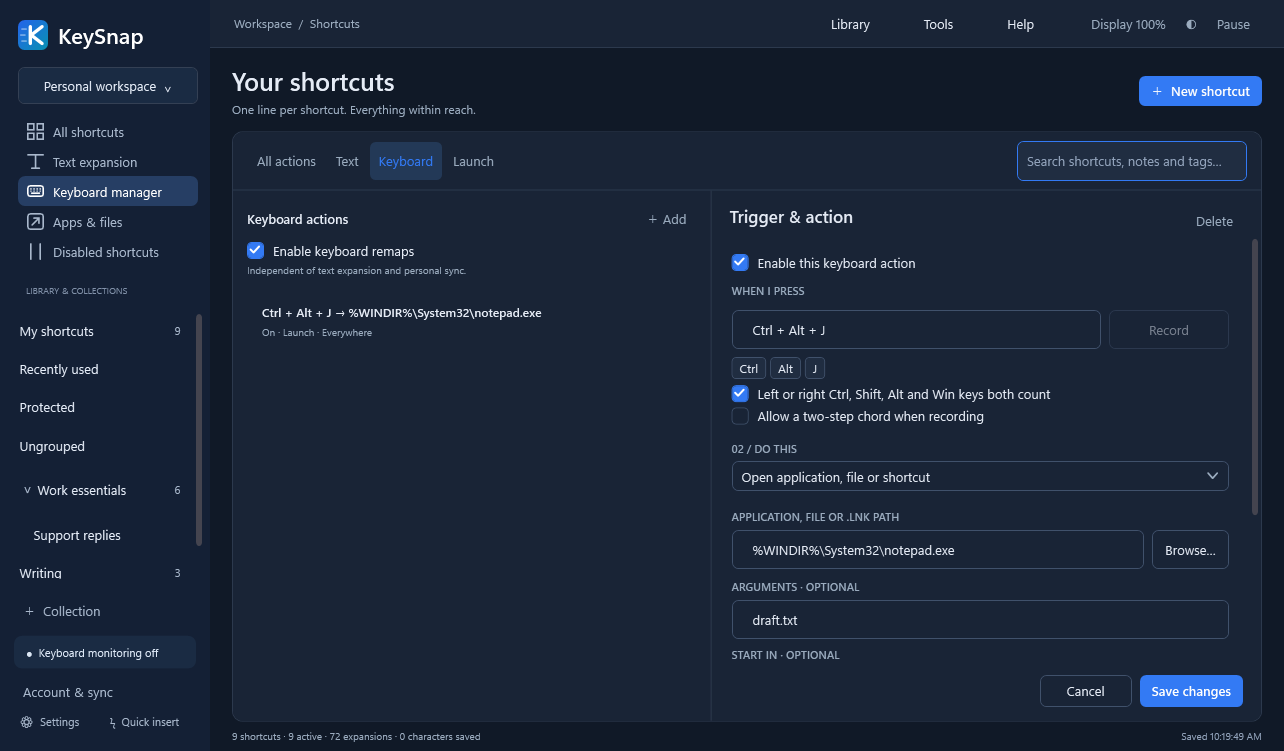
- ✓Remap any keyCaps Lock for Esc, F1 for Ctrl+C, in every program or only in one. Part of the Keyboard manager.
- ✓Switch virtual desktopsA key can jump to the next or previous desktop, or straight to a numbered one, with no stuck keys.
- ✓Formatted signaturesFonts, colours, tables and a logo paste into Outlook and Word exactly as you laid them out.
- ✓Shared team librariesInvite colleagues by email, read-only or editable, encrypted on your computer before anything is uploaded.
- ✓Sync by folderPoint the library at OneDrive or a network share; KeySnap picks up changes made elsewhere.
- ✓Or sync by accountOptional, and off unless you turn it on. Your shortcuts, key remaps and hotkeys follow you between your own computers, encrypted here before they are uploaded.
- ✓Why didn't it fire?An inspector shows, keystroke by keystroke, what KeySnap saw and why a shortcut did or did not match.
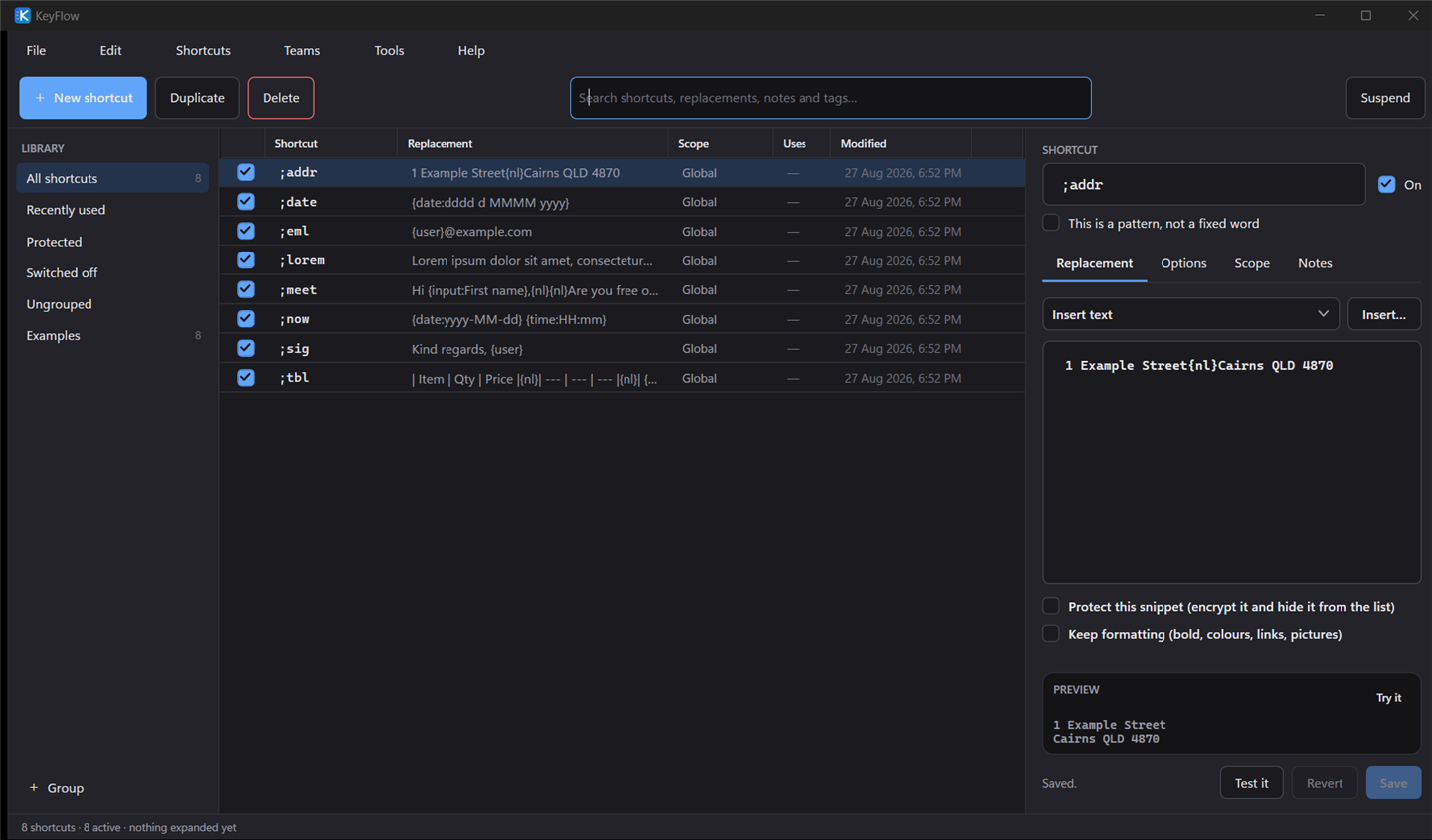
- ✓Sized to your screenScale the whole window up or down, with light and dark themes and a compact editor.
- ✓Automatic backupsEvery save keeps a timestamped copy, and restoring one is two clicks.
- ✓Import and exportCSV, TSV, AutoHotkey and espanso in; JSON, CSV, AutoHotkey, Markdown and print out.
- ✓Starts with WindowsOne tick, no scheduled task, and Task Manager can still turn it off.
- ✓Updates without questionsInstalled at the next restart, or straight away from the Update available label. Choose stable, beta or alpha.
- ✓Ready for ITAn MSI and Group Policy template for rollout, and a health check your RMM can run that sends nothing anywhere.
Keyboard manager
Every shortcut on your keyboard, in one place
Key remaps and KeySnap's own hotkeys live together, so it can tell you when two of them want the same keys. A remap can send other keys, type text, start a program, open a link, switch desktop, or switch a key off altogether. Remaps keep working while expansion is suspended.
Beyond plain text
A snippet can think a little
Anything in braces is worked out at the moment the shortcut fires. Dates shift, fields get asked for, sums get done, and the caret ends up where you want it.
There are forty-odd tokens and the editor has a menu of every one, with an example. Nothing is executed, nothing is downloaded — it is a small, deliberately boring template language.
See every token;quoteHi {input:First name}, Thanks for your patience. The quote for {input:Job} comes to {math:{input:Hours} * 145} plus GST. It holds until {date:+30d:d MMMM yyyy}. Kind regards, {user}{cursor}
Security
A text expander sees everything you type
So it is worth being plain about what KeySnap does with that, and about what any program in this category can and cannot promise.
What KeySnap does
Keystrokes are matched in memory against your own list and then discarded. They are never written to disk, never logged, and never sent anywhere. There is no telemetry and no analytics, so there is nothing to opt out of.
KeySnap does use the network, for three things: checking whether a new version has been published, syncing shared libraries if you are in one, and checking your licence — when you sign in, and every few hours after that, so a seat your employer takes back stops on your machine as well as on their bill. None of the three sends a word of what you type. Shared shortcuts are encrypted here, on your computer, before they go anywhere.
Snippets you mark as protected are encrypted on disk with Windows DPAPI, tied to your user account. Copy that file to another machine or another account and the protected entries are unreadable.
They are also decrypted only at the moment one is used — not when KeySnap starts — so their contents are not sitting in memory all day. Add a passphrase and they stay shut until you enter it, then lock themselves again when you stop using them.
What it cannot do
Nothing here protects you from software already running as you and watching the keyboard. It sees what you type as you type it, before KeySnap is involved at all. A passphrase narrows the window — your protected snippets stay shut while it is locked — but it cannot make a compromised computer safe, and you should be wary of anything that claims otherwise.
A forgotten passphrase cannot be recovered by us or by anyone. And KeySnap is still a convenience rather than a password manager: use a real one for the credentials that matter. Its own settings screen says the same thing.
Sensible defaults. KeySnap refuses to expand inside a standard Windows password box, holds back at a sign-in or consent prompt, runs without administrator rights, and never asks for them. Protected snippets are excluded from exports unless you explicitly confirm.
Switching
Bring your existing shortcuts with you
Nobody rebuilds two thousand shortcuts by hand. KeySnap reads what your current tool can write.
| Coming from | How | What comes across |
|---|---|---|
| ShortKeys | File → Export → Text File, save as CSV, then import it here | Shortkey, replacement, scope and notes |
| PhraseExpress, Breevy, FastFox | Export to CSV or tab-separated text | Abbreviation, phrase, folder and description |
| AutoHotkey | Import the .ahk file directly |
Hotstrings, their option flags, escapes and key syntax |
| espanso | Import the match .yml directly |
Triggers, replacements, case propagation and word matching |
| A spreadsheet | Save as CSV with a header row | Whichever columns you have; KeySnap recognises the usual names |
Import shows you what it found and flags anything that clashes with a shortcut you already have, before it changes a thing.
Comparison
How it lines up
An honest table. AutoHotkey does far more than expand text; TextExpander is a different product with a team-sharing service behind it. This is only about the job KeySnap is for.
| KeySnap | ShortKeys 4 | AutoHotkey | TextExpander | |
|---|---|---|---|---|
| Still maintained | Yes | Discontinued | Yes | Yes |
| Works without writing code | Yes | Yes | No | Yes |
| Encrypted snippets on disk | Yes | No | No | Server-side |
| Works with no internet, ever | Yes | Yes | Yes | Account required |
| Per-application rules | Yes | Yes | By script | Yes |
| Fill-in fields | Yes | No | By script | Yes |
| Fuzzy quick-insert palette | Yes | No | No | Yes |
| Undo an expansion | Yes | No | No | No |
| Key remapping | Yes | No | By script | No |
| Shared team libraries | End-to-end encrypted | No | No | Yes |
| Dark theme | Yes | No | N/A | Yes |
| One-off purchase available | Yes | Yes | Free | Subscription only |
| Sync without a subscription | Your own folder | Manual | Manual | No |
Questions
Before you download
Does it work in every program?
In practically all of them. KeySnap types the way a keyboard does, so anything that accepts typing accepts KeySnap — Outlook, Word, browsers, CRMs, remote desktop sessions, terminals, line-of-business apps from 2004.
The one exception is a window belonging to a program running as administrator. Windows blocks ordinary applications from typing into those, deliberately, and KeySnap does not ask for administrator rights to get around it. It will tell you clearly when that is what happened.
Will it slow my computer down?
No. Matching a keystroke is a handful of dictionary lookups against your own list, measured in microseconds. Sitting in the notification area with a library loaded, KeySnap uses about 18 MB of private memory and no measurable CPU at all between keystrokes. The program itself is under 1 MB of code.
What happens to what I type?
It is compared against your shortcuts in memory and then forgotten. KeySnap keeps a short rolling buffer of recent characters purely so it can recognise an abbreviation, and that buffer is cleared whenever you click, move the caret, or switch windows. Nothing is written to disk and nothing is transmitted.
Can I use it on more than one computer?
Yes. A Pro licence covers three devices for one person. Turn on sync in your account and your shortcuts, key remaps and hotkeys follow you, encrypted before they leave each computer. Or put the snippet file in OneDrive, Dropbox or a network share and KeySnap will notice when another machine changes it and reload.
Protected snippets are the exception: they are encrypted for the Windows account that created them, so they will not open on another machine. That is the point of them. Everything else syncs.
Is there a portable version?
Yes. The portable build runs from a folder or a USB stick and keeps its library beside the executable. Handy for locked-down environments where you cannot install anything.
What do I need to run it?
Windows 10 version 1809 or newer, or Windows 11, on 64-bit x64 or ARM64. KeySnap runs on the .NET 10 Desktop Runtime; the installer adds it if your machine does not already have it, and skips it if it does.
Get the first twenty-five for nothing
Twenty-five shortcuts is enough to cover a sign-off, an address, a handful of templates and the things you retype every day. If it earns its place, upgrade.